
Outlook - Fetch Emails
Reads the emails from a folder in your mailbox. You supply the address and the folder path, the rest is done.
View templateA good share of what ends up in Business Central arrives by mail. Today somebody opens the mailbox, saves the attachment, types it in and drags the mail into a done folder. Those are exactly the three motions AutoFlow can take over.
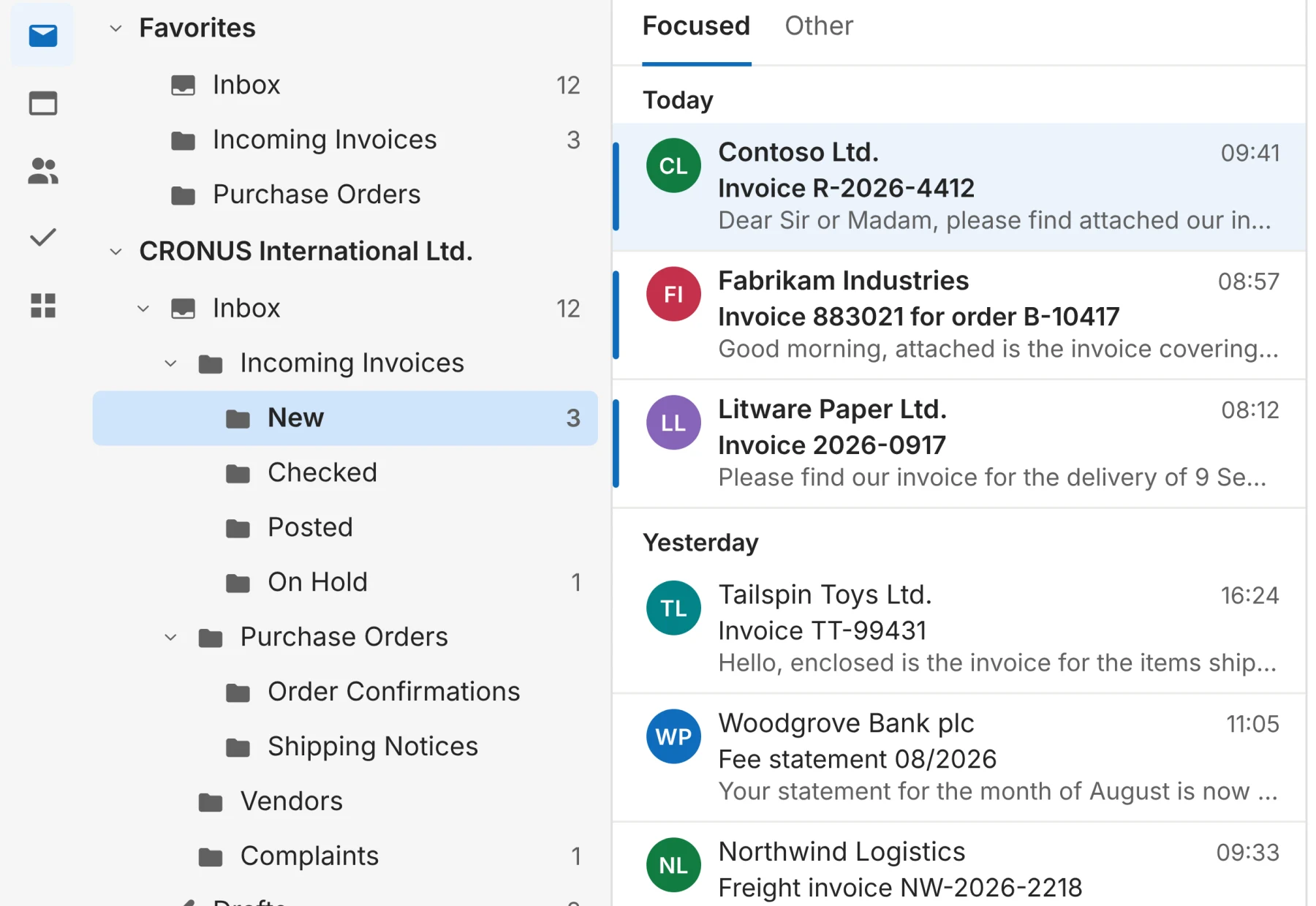
Orders, invoices, dispatch notes, order confirmations: a lot of it arrives as mail with an attachment, and the path from there into Business Central is currently a person. The mailbox is not the problem — the path out of it is.
AutoFlow reaches the mailbox over Microsoft Graph. A process fetches the mail from a folder, takes the attachments and afterwards moves the mail to wherever you keep handled post. What happens between fetching and filing is what you build in the editor — that is the part that looks different in every company.
The Outlook interface in Microsoft Graph is a large one: anything you can do there, you can build in AutoFlow. For the most common cases there are ready-made templates in the gallery.
Ready-made subflow templates are waiting in the gallery: take one, enter your credentials, and the subflow is there as a step in your own processes. You can start with it today.
Read, take the attachments, file away — the three motions are in the gallery as separate subflows. You take them, enter your mailbox and folders, and call them from your own process.
Reads the emails from a folder in your mailbox. You supply the address and the folder path, the rest is done.
View templateFetches the attachments of an email. The piece between “the mail is here” and “the document is in the system”.
View templateMoves an email into a different folder. That is how the process remembers what is done, without a table of its own.
View templateThe three subflows are your steps. You take them from the gallery and from then on drop them into any process that needs the mailbox, exactly like any other step.
Yes. You build a scheduled process that checks the folder at whatever interval you choose — every five minutes, say — and starts whatever should happen for each new mail. You set the interval, and it can differ per mailbox.
By the folder. Processed mail moves on, and whatever is in the inbox folder is outstanding. That is why the third template matters as much as the first — and it happens to be the version a person can follow without opening a log.
That is what AutoFlow Receive is for — the finished solution that reads documents out of mailboxes, EDI channels and PDFs and creates them in Business Central. This connector is the layer underneath: the building blocks for whatever else you want to do with a mailbox.
The process stops with a message naming the folder it looked for and the mailbox. A typo in the path should be recognisable as a typo, not pass silently as an empty result.
You can build and test in the sandbox as long as you like, without limits. And two active flows stay free forever in your production tenant — not a trial that runs out.